Introduction
Google Groups is a service provided by Google that offers a place for the discussion of shared topics. It provides convenient features for group activities, such as creating mailing lists and sending emails to all members of the group at once.
With an ECCS Cloud Email, you can use not only the regular Google Groups features available with general Google accounts, but also additional features designed for organizations. You can choose which type to use, but for activities conducted as part of the University of Tokyo, using Google Groups for ECCS Cloud Email users is more convenient.
Please note that if permission settings in Google Groups are configured incorrectly, there is a risk of information leaking to unrelated parties. Be sure to refer to this page and the documentation on Google Groups privacy settings (in Japanese, sign-in with a UTokyo Account is required) to configure the settings appropriately.
Features of Google Groups for ECCS Cloud Email Users
The basic functions of Google Groups for ECCS Cloud Email users are the same as those of the general Google Groups. However, there still remain differences in the areas outlined below.
- Google Group Email Addresses:
- General Google Groups: [xxxx]@googlegroups.com
- Google Groups for ECCS Cloud Email users: [xxxx]-group@g.ecc.u-tokyo.ac.jp
- You can set the [xxxx] part on your own.
- For college/faculties/graduate schools or departments that use the Information Technology Center’s Email Hosting Service, it is also possible to use addresses in the form of [xxxx]@(the organization’s domain name). For details, please consult your organization’s domain administrator for the Email Hosting Service.
- Group Settings:
- Google Groups for ECCS Cloud Email allows you to restrict access to your group to “Organization members” only (i.e. only members with an ECCS Cloud Email).
- For example, if you set “Users who can search for the group” to “Entire organization”, then only ECCS Cloud Email users will be able to search for and find that group.
- Google Groups for ECCS Cloud Email allows you to restrict access to your group to “Organization members” only (i.e. only members with an ECCS Cloud Email).
- Group Administrators:
- General Google Groups: Any user
- Google Groups for ECCS Cloud Email users: ECCS Cloud Email users
- It is recommended to avoid granting administrative privileges such as “Group owner” or “Group manager” to users outside the ECCS Cloud Email organization as much as possible.
- Involvement of the Information Technology Center:
- General Google Groups: The Information Technology Center is not involved in their operation and cannot intervene at the system level.
- Google Groups for ECCS Cloud Email users: As a general rule, the Information Technology Center does not get involved in their operation. However, depending on usage, settings may be modified, and in cases involving legal issues, a group may be deleted.
How to Use Google Groups
Basic operation
To access Google Groups from a web browser, log in to Google, click the 3×3 grid icon in the upper right corner, and select “Groups” from the menu.
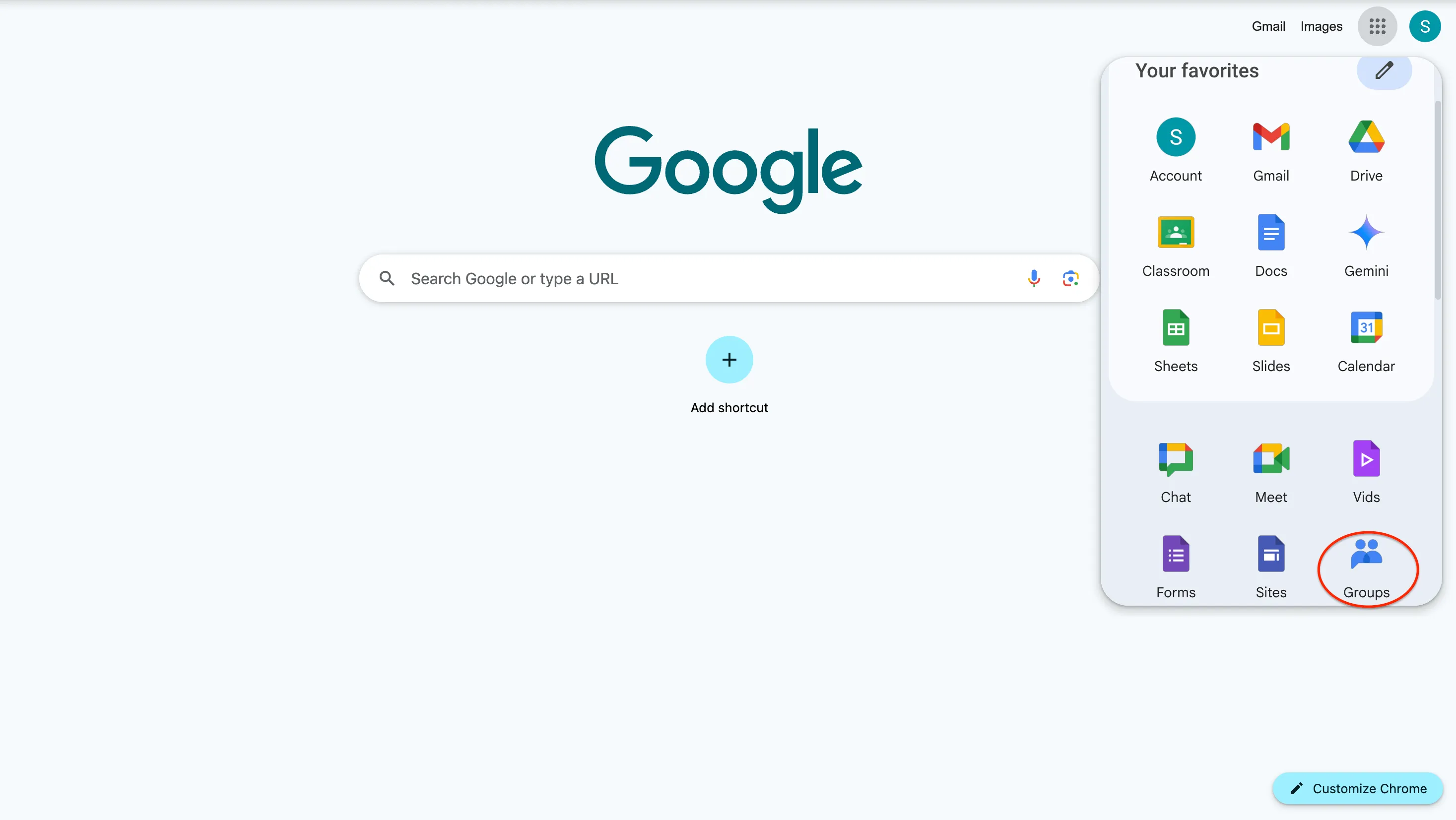
If you cannot find it, please click the link below.
Google GroupsMy Groups
“My Groups” is the default screen of Google Groups. On this screen, the groups you belong to are displayed. You can also view them by selecting “My groups” on the left side of the screen.
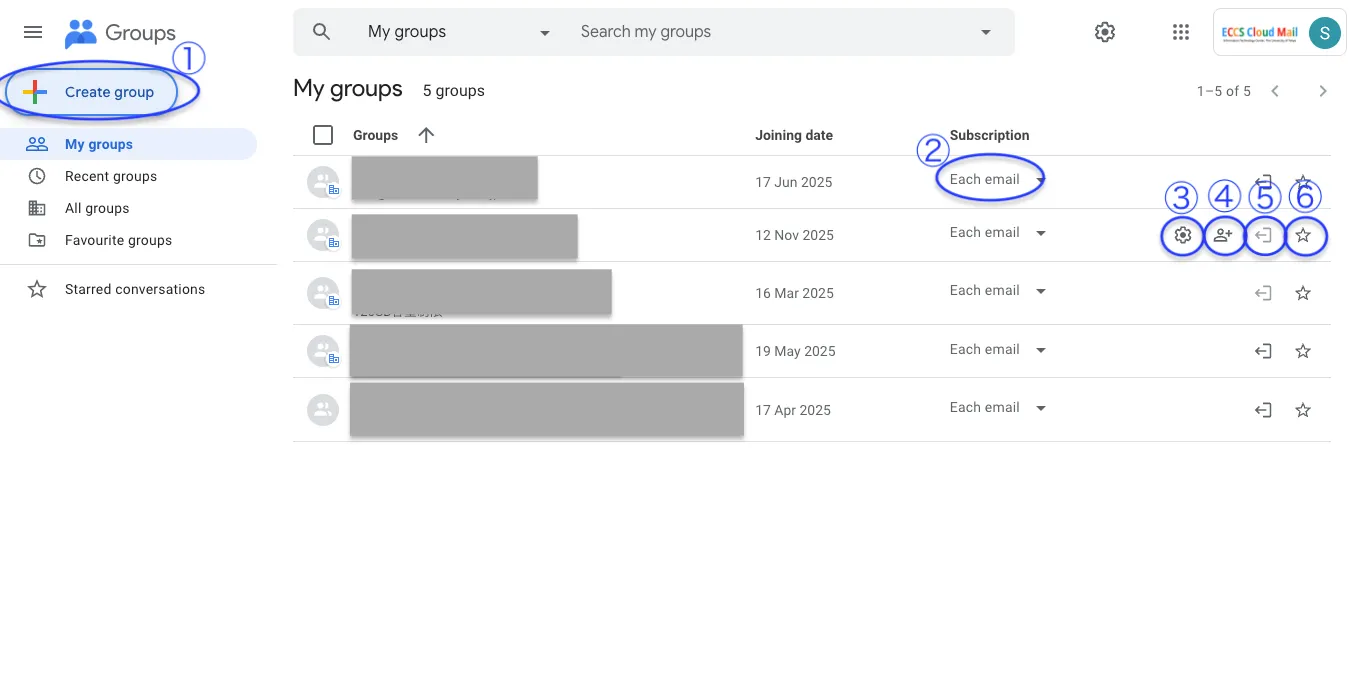
The numbered icons in the screenshot have the following functions:
- ① Create Group
- You can create a new Google Group.
- For detailed instructions, see Create a group.
- ② Change Group Subscription Settings
- You can choose how to receive emails from the group by selecting one of the following options:
- Each message: Every message posted to the group will be sent to you by email.
- Digest: Up to 25 messages will be compiled into a single email delivered daily.
- Abridged: Summaries of up to 150 messages will be compiled into a single email delivered daily.
- No email: You will not receive any emails from the group.
- For more information, see Manage your subscriptions & global settings – Google Groups Help.
- You can choose how to receive emails from the group by selecting one of the following options:
- ③ Group Settings
- You can edit the group name and description, change privacy settings, and modify posting settings.
- This icon is only available to group owners and managers.
- ④ Add Group Members
- If this icon is displayed, you can add members to the group.
- ⑤ Leave Group
- You can remove yourself from a group you are currently subscribed to.
- ⑥ Add to Favorite Groups
- By adding a group to your favorites, you can easily find it via the “Favorite groups” link on the left side of the screen.
All Grroups
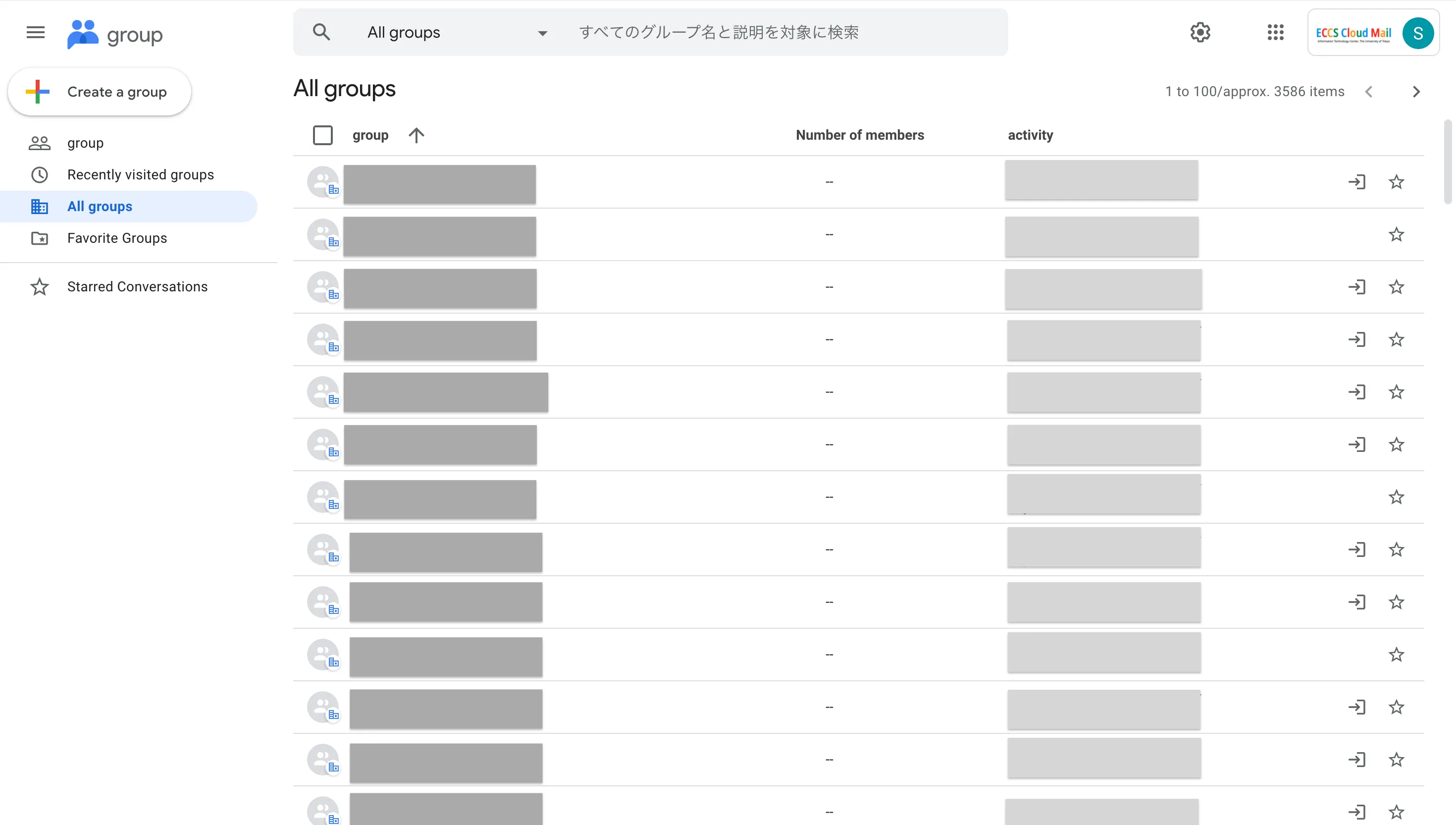
When you select “All groups” on the left side of the screen, all groups within the organization that allow their display in search results will be shown. However, access may require approval from the group’s owner or manager.
Create a Group
The following explains the procedure for creating a group.
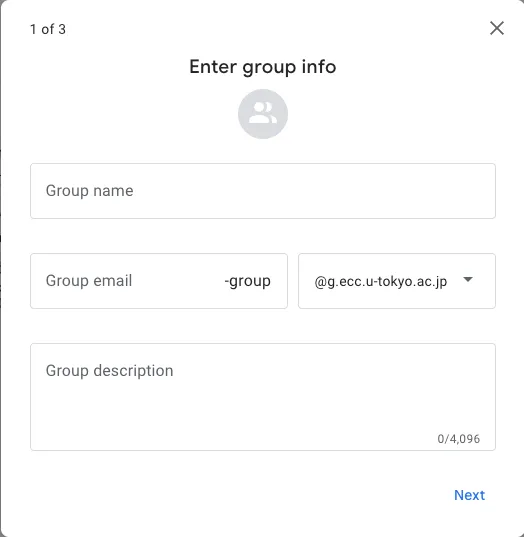
- Click the “Create Group” button. On the screen that appears, enter the following information and then click “Next”.
- Group name: This is the name of the group.
- Group email: This is the email address of the group. You can think of it as an integrated address for all group members. Emails sent to this address will be delivered to all group members.
- Domain Name (the part after @): You can choose either your organization’s domain (@g.ecc.u-tokyo.ac.jp) or the general domain (@googlegroups.com). If your college/faculty/graduate school or department uses the Information Technology Center’s Email Hosting Service and wishes to use the organization’s domain name, you cannot create the group from this screen. Please consult your domain administrator for details.
- If your college/faculty/graduate school or department uses the Information Technology Center’s Email Hosting Service and wishes to use the organization’s domain name, you cannot create the group from this screen. Please consult your domain administrator for details.
- Domain Name (the part after @): You can choose either your organization’s domain (@g.ecc.u-tokyo.ac.jp) or the general domain (@googlegroups.com). If your college/faculty/graduate school or department uses the Information Technology Center’s Email Hosting Service and wishes to use the organization’s domain name, you cannot create the group from this screen. Please consult your domain administrator for details.
- Group description: A field where you can enter the purpose or overview of the group. This description will be displayed in list views and search results.
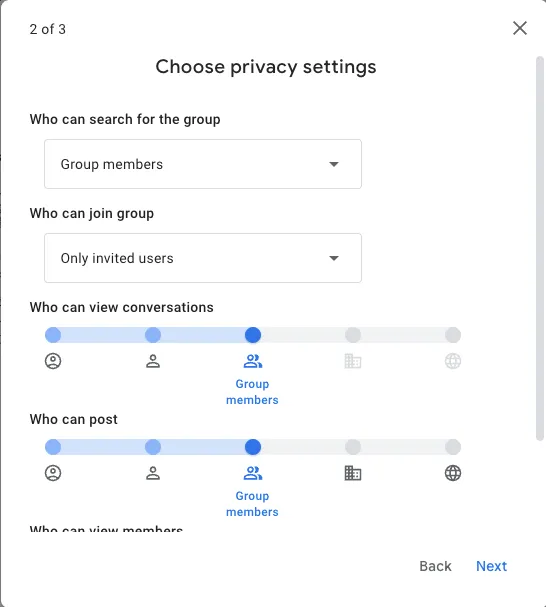
- Select the privacy settings and click “Next”. When configuring these settings, please make sure that internal information is not accessible to unauthorized individuals.
- For Google Groups used by ECCS Cloud Email users, it is recommended to restrict user access to group functions in the group settings as follows:
- For functions intended for group members, select “Group members”.
- For administrative functions, select “Group owners” or “Group managers”
- Even in cases such as inquiry-response groups, where posting by non-members is necessary, please configure the settings to allow non-members the bare minimum. For example, limit permissions for “Entire organization” or “Anyone on the web”, to only “Who can post”.
- Enter the email addresses of the members you want to add to the group under “Group members”.
- If you would like to assign an administrative role, add them as “Group manager” or “Group owner”.
-Under “Registration”, you can select how messages are delivered. For details about the available options, please refer to section ② Changing Group Subscription Settings in the My Groups.
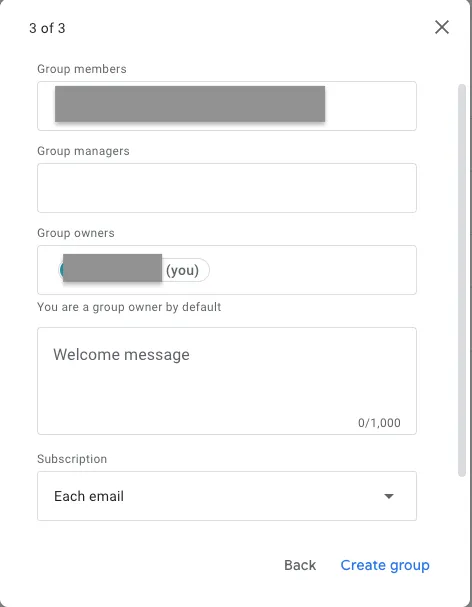
- When you select “Create group”, the group will be created.
Use as a Mailing List
To use Google Groups as a mailing list, specify the group’s email address as the recipient. However, as expanded on below, the sender may be required to be a member of the destination group to do so.
- When membership in the destination group is required: This applies when the group setting for “Who can post” is set to “Group members”. This is the case for many groups.
- When membership in the destination group is not required: This applies when the group setting for “Who can post” is set to “Anyone on the web”. For example, inquiry-response Google Groups are sometimes configured this way.
If membership in the destination group is required and you wish to join an existing group, please provide your email address to the group administrator and ask to be invited. Please note that in some cases, you may not be able to request to join a group from the search results in “All Groups”. If you wish to create your own group, please refer to Create a Group.
Sending emails using a Google Group email address
You can send emails using the email address assigned to a Google Group. This allows multiple people to share and use a single email address. For instructions on how to configure this, please refer to “Sending an email with a group email address as the sender (in Japanese)”.
Use as a collaborative inbox
By using the collaborative inbox feature of Google Groups, you can label conversations and assign them to group members. This can be useful for help desks and similar applications.
This feature is available only for Google Groups used by ECCS Cloud Email users. To use it, the group owner or manager must enable the collaborative inbox feature in the group settings. For more details, please refer to “Use a group as a collaborative inbox – Google Workspace Learning Center”.
Integration with other Google services
In other Google services, by specifying a Google Group email address as a recipient for sharing, you can collectively grant permissions to all members of that group.
- For Google Drive: See How to Set the Access Range (Sharing files in Google Drive) (in Japanese)